Stop Rebuilding the Same Spreadsheet by Hand
"Who touched this cell?" If you've ever asked that on your team, you already know the problem. Almost every operation has a file that started small and quietly took over half the week: everyone opens it, no one dares touch it too much, and it still has to be rebuilt by hand every month — copy, paste, review, second-guess, repeat. Six to eight hours a month, just on that.
What most teams never realize is that a lot of this process doesn't have to depend on one person. Excel has far more automation potential than most people tap into, and in 2026 there are more ways to unlock it than ever — from an AI assistant sitting right inside the grid to turning the entire spreadsheet into an application your whole team logs into.
1. AgentUI: When Excel Stops Being a Spreadsheet and Becomes a Governed Tool
The real problem with a business-critical spreadsheet isn't the manual work. It's trust. Anyone with the link can overwrite a cell, there's no record of who changed what, and the moment more than one person is in the file, something breaks.
The Sign. A number no one can explain. A version of the file circulating by email while someone else is editing a different one. No one can say with certainty which version is the truth.
The Root Cause. Excel has no access control and no change history. Anyone who opens the file can modify anything, and nothing is logged.
The Fix. AgentUI takes a different approach from everything else on this list: instead of automating tasks inside the spreadsheet, it treats the spreadsheet as a data source and builds a full application on top of it — with the safeguards Excel never had:
- Audit trails — a complete history of who changed what and when, so a wrong number is traceable instead of a mystery.
- Role-based access — finance sees the dashboard, each vendor sees only their own rows, field staff enter data through a form instead of the raw grid.
- A single source of truth — updated in real time, instead of a
Tracker_FINAL_v3circulating through everyone's inbox. - Automated workflows — forms replace direct editing, and automations run in the background without anyone opening Excel.
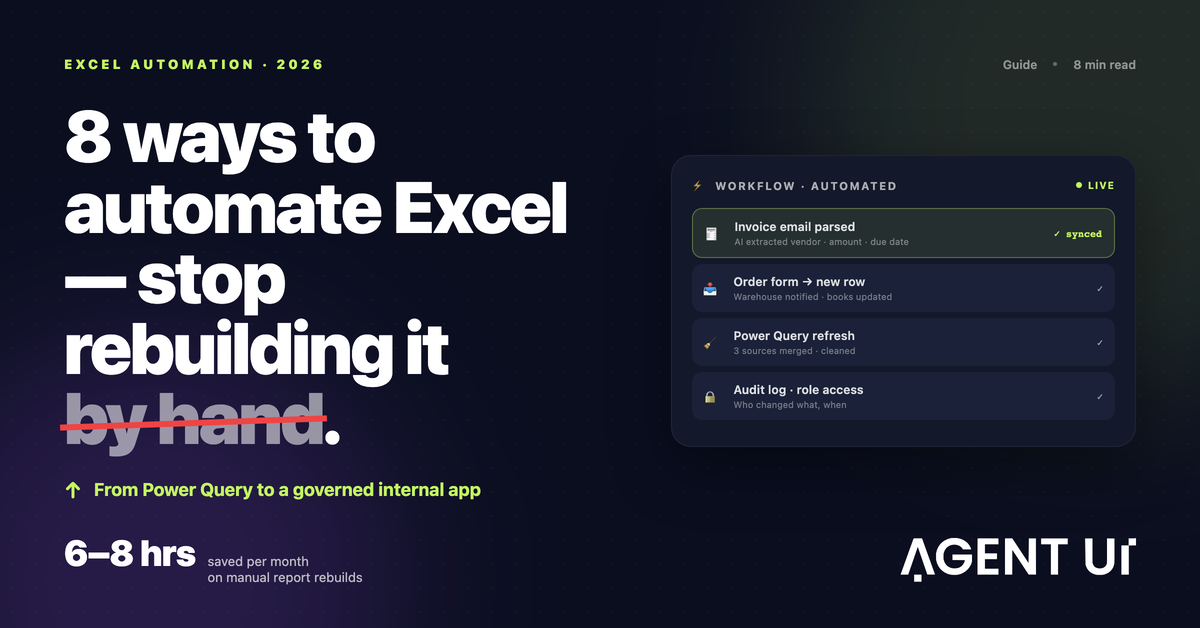
A concrete example: the sales team submits orders through a form, and AgentUI adds the row, notifies the warehouse, and updates the accounting system — with every step logged. Or from the other direction: an invoice comes in, AI identifies the vendor, amount, and due date, applies the approval rules you've already set, and alerts accounts payable. The spreadsheet stays accurate without anyone typing a thing.
What sets AgentUI apart isn't the technical side — it's what happens when something breaks. It's not just a no-code builder: it comes with human onboarding, real people who help you build the tool and stay available afterward, so the automation never ends up depending on the one person on the team who understood how it was built. That's the real difference between a clever trick and a system the whole operation can trust.
When to use it: When several people need to work on the same data without stepping on each other, when you need real audit history and access control, when field teams need something as simple as a mobile form, or when you want workflows triggered automatically by schedules, emails, or external systems (Shopify, Stripe, QuickBooks) — with human support behind it, not just a builder.
Turn your Excel spreadsheet into a governed app →
2. Power Query: When the Problem Isn't Automation, It's Cleaning and Merging Data
"Why does this column have three different formats?" Before reaching for macros or scripts, it's worth asking whether the real bottleneck is somewhere else entirely — in getting the data ready before you can even use it.
The Sign. Every month you repeat the same process: import files, delete junk columns, fix formats, merge tables from different sources — and every month it takes just as long.
The Root Cause. There's no documented, repeatable process, so everyone cleans the data their own way, with their own shortcuts, and no one can reproduce exactly what was done last time.
The Fix. Power Query, already built into Excel, lets you define the sequence of steps once — which columns to drop, how to split a field, which tables to merge — and saves it as a reusable recipe. Next month, drop in the new file and hit Refresh; the entire transformation runs again in seconds. No coding required, though advanced users can dig into the M language underneath the visual step recorder.
It's worth using when the work is, at its core, the same type of task repeated on different data: consolidating monthly exports, combining reports from multiple systems, or standardizing messy inputs.
3. VBA Macros: Classic Desktop Automation
VBA (Visual Basic for Applications) has been Excel's automation engine for decades, and for certain tasks, it's still unmatched.
The Sign. You find yourself repeating the exact same sequence of clicks — formatting a range, sorting a table, building a report, saving a copy under a new name — several times a week.
The Root Cause. The task lives entirely inside one file, on one machine, and never justified pulling in an external tool.
The Fix. Record or write a macro that runs the whole sequence with a single command. Unlike other tools on this list, VBA can loop through rows, evaluate conditions, pop up dialog boxes, and manipulate nearly every element of the workbook.
Its weak spot is that it's tied to the desktop: macro-enabled files can run into corporate security policies, and it isn't built for workbooks shared by multiple people in the cloud. VBA makes sense when the repetitive work stays inside a single file and you need fine-grained control over the workbook itself.
4. Office Scripts: The Same Logic, Built for the Cloud
Office Scripts is, in a sense, VBA's evolution for a world where files no longer live on a single computer.
The Sign. The workbook is shared by several people in OneDrive or SharePoint, and traditional macros either don't run there or create version conflicts.
The Root Cause. VBA is tied to a specific machine; once the file moves to the cloud and more than one person edits it, that dependency becomes a real problem.
The Fix. You record actions the same way you would a macro, and Office Scripts translates them into editable TypeScript. The real payoff comes when you pair it with Power Automate: a script can trigger on its own, on a set schedule or in response to an event, with no one having the app open.
It's the right choice when the workbook is shared in the cloud among several people and you need automation to run on a schedule, without depending on a desktop app staying open.
5. Power Automate: The Bridge Between Excel and Everything Else
Some automation can't be solved inside Excel alone, because the spreadsheet is just one stop in a longer process.
The Sign. Every time a form gets submitted, someone has to manually copy that data into Excel, post a notification in Teams or Slack, and then update the accounting system by hand.
The Root Cause. Excel isn't connected to the rest of the stack, so every step of the process depends on a person bridging systems manually.
The Fix. Power Automate connects Excel to hundreds of applications and builds multi-step workflows between them. A typical flow:
- When a new form response comes in →
- Add a row automatically to an Excel table in OneDrive →
- Notify the warehouse team in Teams →
- Generate an invoice in the accounting system.
The entire chain runs on its own, with no manual step anywhere in it.
It's useful when Excel is just one piece of a larger process, when you need to react to events happening in other platforms, or when you want notifications and approvals to fire automatically based on your spreadsheet data.
6. AI Assistants: Automating by Simply Asking
The newest way to automate Excel is to just describe what you need in plain language and let an assistant handle it.
The Sign. You need a one-off formula, a quick summary, or help making sense of messy text — nothing that justifies building a full macro for something you'll only use once.
The Root Cause. Plenty of tasks are fuzzy or one-off, hard to encode as a fixed rule, and fall outside what VBA or Power Query naturally handle.
The Fix. Copilot and similar tools let you type instructions like "summarize sales by region," "flag rows with margin under 10%," or "write a formula that calculates this," and get the result without hunting down the exact syntax. The advantage shows up most in spotting patterns, suggesting formulas, and generating quick summaries — and it also lowers the barrier for the whole team, not just whoever knows Excel best.
7. Scheduled Scripts and APIs: Automation Without Opening the App
For teams comfortable with some code, this is the path for work that needs to run on its own, every day, without anyone triggering it.
The Sign. Someone has to open Excel every morning, pull fresh data, and email the report before the rest of the team even gets to their desk.
The Root Cause. The process depends on one person being available at a fixed time, which makes it fragile against absences or manual errors.
The Fix. Languages like Python — with libraries such as openpyxl and pandas — or the Microsoft Graph API can read and write Excel files entirely in the background. A scheduled script can run before the team arrives: pull fresh data, update the workbook, recalculate, and email the result. This is the path for high-volume, fully unattended work — overnight updates or mass-generating reports from a single template.
8. The Real Strategy: Combine Several Tools
This last point isn't another tool — it's a shift in mindset: stop looking for one solution that fixes everything, and start combining the ones that already exist.
The best-automated teams tend to layer several of these together: Power Query cleans the incoming data, an Office Script triggered by Power Automate transforms it on a schedule, AgentUI gives field teams a form and finance a live dashboard — with audit trails and access control built in — and AI stays on call for one-off analysis. All of it can keep running on top of the same underlying Excel files.
You don't have to build that entire stack at once. What matters is identifying the task that consistently eats the most time, automating it, and only then moving on to the next one.
Make Excel Work For You, Not the Other Way Around
A spreadsheet works best when it quietly supports your work in the background instead of demanding constant attention. Automation is how you get there.
Clean and merge data with Power Query. Automate the repetitive work with VBA and Office Scripts, whether on desktop or in the cloud. Connect Excel to the rest of your stack with Power Automate. Handle the one-off and fuzzy stuff with AI assistants. And turn the spreadsheet itself into a governed tool with AgentUI, backed by audit trails, access control, and real human support.
The first step is picking the process that's quietly costing you the most time each month — and automating it this week.
